Build for the device the district actually bought
A four year old Chromebook, one access point serving thirty simultaneous loads, a managed profile that blocks your extension, and nine minutes until the bell.
Every product decision in this market eventually meets the same wall. The device isn't the one your product was designed on.
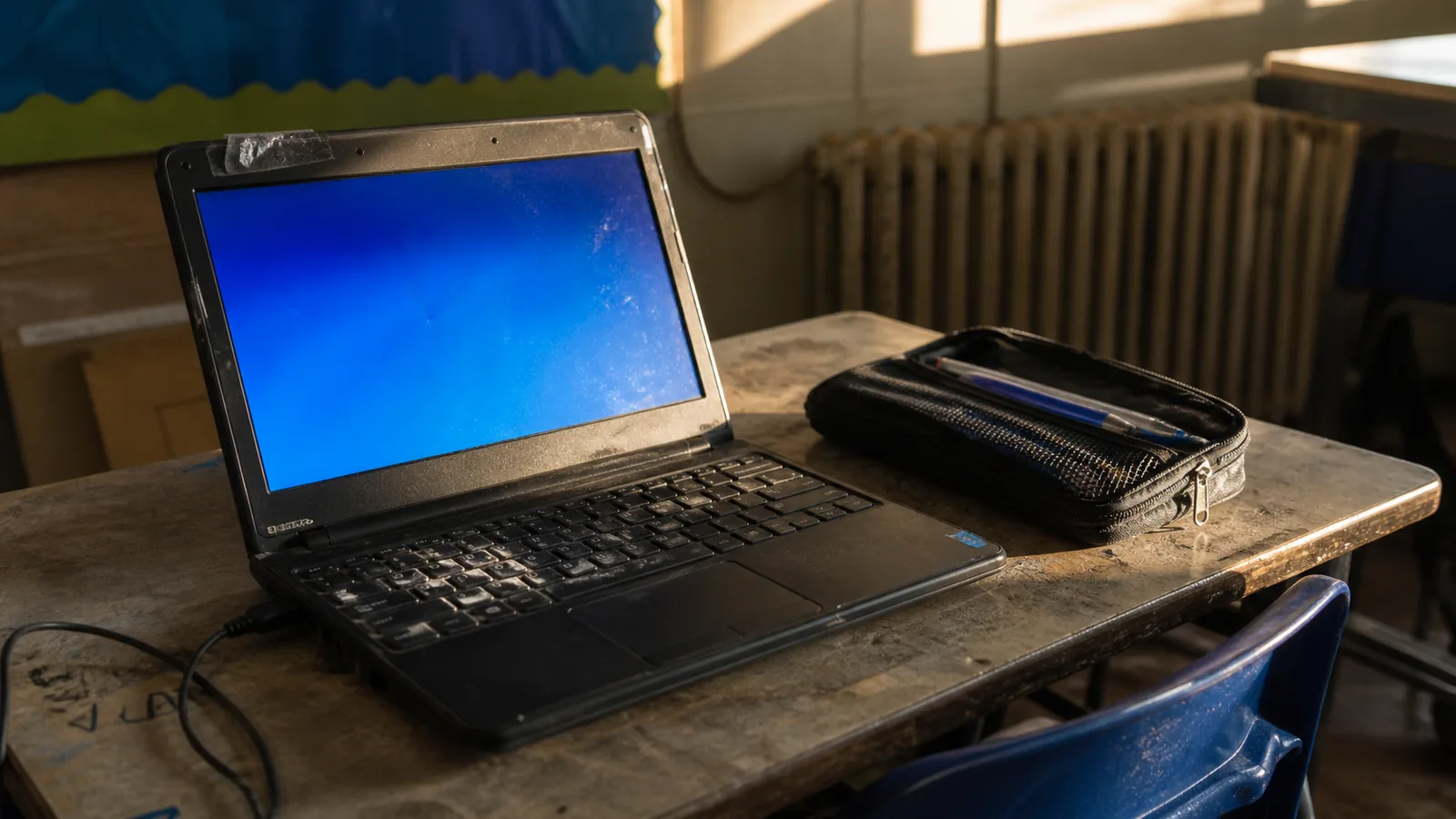
What's actually in the room
Chromebooks dominate US K-12, and have for years, for reasons about management and price rather than capability. That means ChromeOS, Chrome, a managed profile, modest hardware, and a replacement cycle of four to five years. A meaningful share of the fleet in use today was bought in 2021 or 2022.
The hardware is modest by design. 4GB of RAM is common. The CPU is mid-range at best and thermally limited in a plastic chassis. Storage is small and often nearly full.
iPads are common in early grades, shared, in a cart, with a passcode a five year old can't type.
Windows laptops appear in high schools and in career and technical education, alongside a long tail of lab desktops older than the students.
Interactive displays at the front of the room run an embedded Android or a connected PC, and get used to project your product to the whole class. Your interface will be viewed from twenty feet away whether you designed for that or not.
The five constraints
1. The network is a burst problem, not a bandwidth problem
A district's aggregate bandwidth is usually fine. The constraint is thirty devices behind one access point, all loading your application within the same ninety seconds, because a bell rang.
Design for the burst. Your first load isn't one request, it's thirty simultaneous ones, and then two hundred when the class next door starts too.
- Keep the initial payload small and cache aggressively. A returning student should load almost nothing.
- Avoid per-student fan-out at start-up. If every child's launch triggers three API calls and a roster refresh, you've designed a thundering herd into the first minute of every lesson.
- Degrade rather than fail. A partial load that lets a student begin is worth more than a spinner that resolves correctly forty seconds later.
- Assume connectivity drops. School Wi-Fi has dead spots: a corner of the library, a portable classroom, the far end of a science wing. Work in progress should survive a thirty second gap.
2. The CPU budget is smaller than you think
Anything animation-heavy, physics-simulating or continuously re-rendering needs a budget set against a low-end Chromebook, not a development machine.
Practical measures: throttle to 4x CPU slowdown as your default testing profile rather than an occasional check, cap animation and simulation frame rates rather than running unbounded, use requestAnimationFrame properly and stop when off-screen, and watch for memory growth that only appears in a forty minute session. A leak invisible in a two minute test will take down a device by period four.
And remember the machine already has thirty tabs open. You aren't allocating from an empty computer.
3. Management blocks things you assume
A managed Chromebook is administered from the Google Admin console. Extensions are force-installed by administrators, not chosen by users. Applications are allowlisted by OAuth client id, the specific failure covered in SSO for schools.
The rule that follows: anything requiring a student to install something will not happen. Not because it's difficult, because they lack the permission. If your product needs an extension, it needs a documented administrator deployment path and a working experience without it.
Pop-ups may be blocked, which affects OAuth flows that open windows. Third-party cookies are increasingly restricted, which affects anything embedded in an iframe, and an LTI launch inside an LMS is exactly that. Test your product inside an iframe in a partitioned-storage browser, because that's the real deployment.
Camera and microphone prompts deserve specific care. They're confusing for young children, sometimes pre-blocked by policy, and a request mid-activity derails a lesson. Request early, explain plainly, always have a path that works without.
4. Time is instructional minutes
A class period runs forty to ninety minutes. The passing period is under ten. A teacher planning a lesson allocates minutes and knows exactly what they spent them on.
That reframes performance work. Time to interactive isn't a metric, it's instructional time. Thirty seconds of loading, times thirty students, times five periods, is over an hour of teaching lost per classroom per day. A teacher who computes that stops using your product.
The same logic applies to friction. Every sign-in step, every "are you sure", every unskippable tutorial is a cost paid thirty times simultaneously while a teacher watches.
Two features that pay for themselves: let the teacher start the whole class at once rather than having each child navigate independently, and let a student resume exactly where they were, because they will be interrupted by a fire drill, an assembly, or the bell.
5. Devices are shared
A cart serves four different classes a day. Same physical machine, four different children.
Session lifetimes tuned for a personal laptop mean the second-period student inherits the first-period student's session, which is a privacy incident rather than a UX inconvenience. Bind sessions tightly, end them on browser close by default, make the signed-in identity visible on every screen, and make switching user obvious rather than buried.
Testing that reflects reality
- An actual low-end Chromebook on your test bench. Not an emulator, and not a Pixelbook. A base model from three or four years ago is the honest target.
- CPU throttling on by default in development.
- Network throttling that models the burst, not just a slow link.
- Your product running inside an iframe, in an LMS, with third-party cookies restricted.
- A class-sized load test: thirty concurrent sessions starting within ninety seconds.
- A forty minute session, watching memory.
- ChromeVox on the Chromebook, per accessibility with a deadline.
The reframe
The useful way to hold all of this: your product doesn't run on a device, it runs in a room. Thirty children, one adult with a plan and a finite number of minutes, on hardware chosen for fleet management rather than for your application, on a network that's fine on average and congested exactly when you need it.
Software that's genuinely good in that room tends to be unglamorous. Fast to start, small to load, resilient to a dropped connection, obvious about who is signed in, easy for a teacher to launch for everyone at once.
None of that appears in a feature list. All of it is why a district renews.
Common questions
- What devices do US schools actually use?
- Chromebooks dominate US K-12, typically with 4GB of RAM, a modest CPU and a four to five year replacement cycle. iPads are common in early grades, Windows laptops appear in high schools and career and technical education, and interactive displays are used to project to the whole class.
- How fast should educational software load in a classroom?
- Fast enough that thirty simultaneous loads after a bell do not consume instructional time. Thirty seconds of loading, multiplied by thirty students across five periods, is over an hour of teaching lost per classroom per day.
- Can students install browser extensions on school devices?
- No. Managed Chromebooks are administered centrally and extensions are force-installed by administrators. Anything requiring a student to install something will not happen, so an extension needs a documented administrator deployment path and a working experience without it.